Preface
This post has actually been in the works for a long time. I was writing it while also researching and learning MMD, so it got delayed for ages~~~.
Note: This guide assumes you are using an Apple Silicon (M-series) chip. Intel chips are not covered.
Also worth noting: this post is about exploring feasibility.
This post references various online tutorials along with my own hands-on experience. If you spot any errors, please let me know through any available contact method — I’d greatly appreciate it~.
Solutions
Virtual Machine
If you’re on a laptop, it’s recommended to plug in your charger when using MMD inside a virtual machine. MMD is a DirectX 9 application and is not ARM-native. Running it inside Windows on ARM triggers the system’s emulation layer, which increases power consumption and puts significant strain on the laptop battery.
The most common approach is to use Parallels or VMware to create a virtual Windows environment on macOS, install the required dependencies, and then run MMD.
While performance may take a slight hit due to the emulation layer, it’s simple and convenient~.
On Apple Silicon Macs, you can only install Windows on ARM, since the M chip is based on the ARM architecture and cannot run x86 Windows.
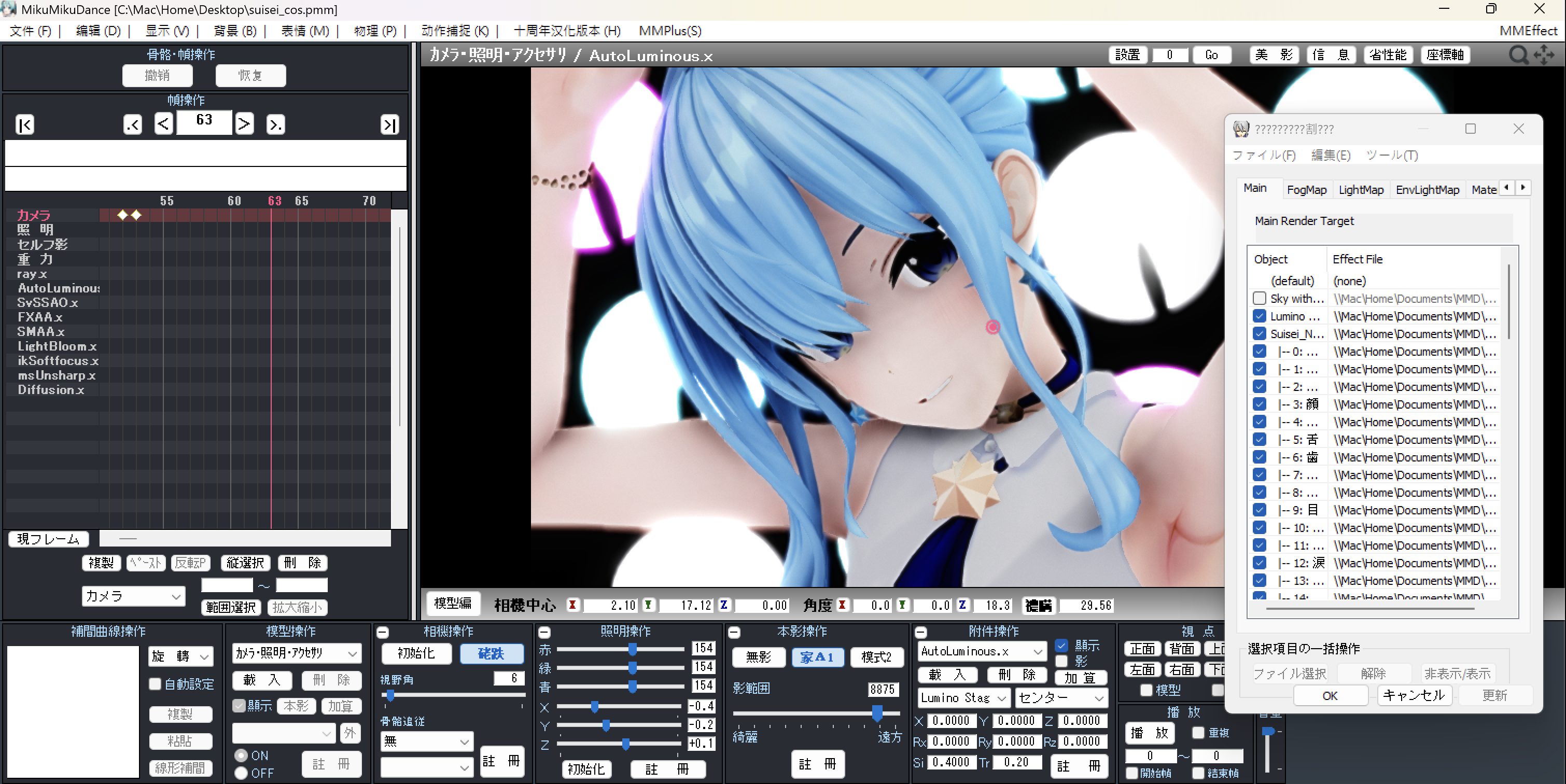
MMD runs fully with MME support. There are a few minor garbled character issues, but no serious crashes or critical problems occurred during the production process.
For video export issues, see the section below: Video Export Problem (Important ‼️)
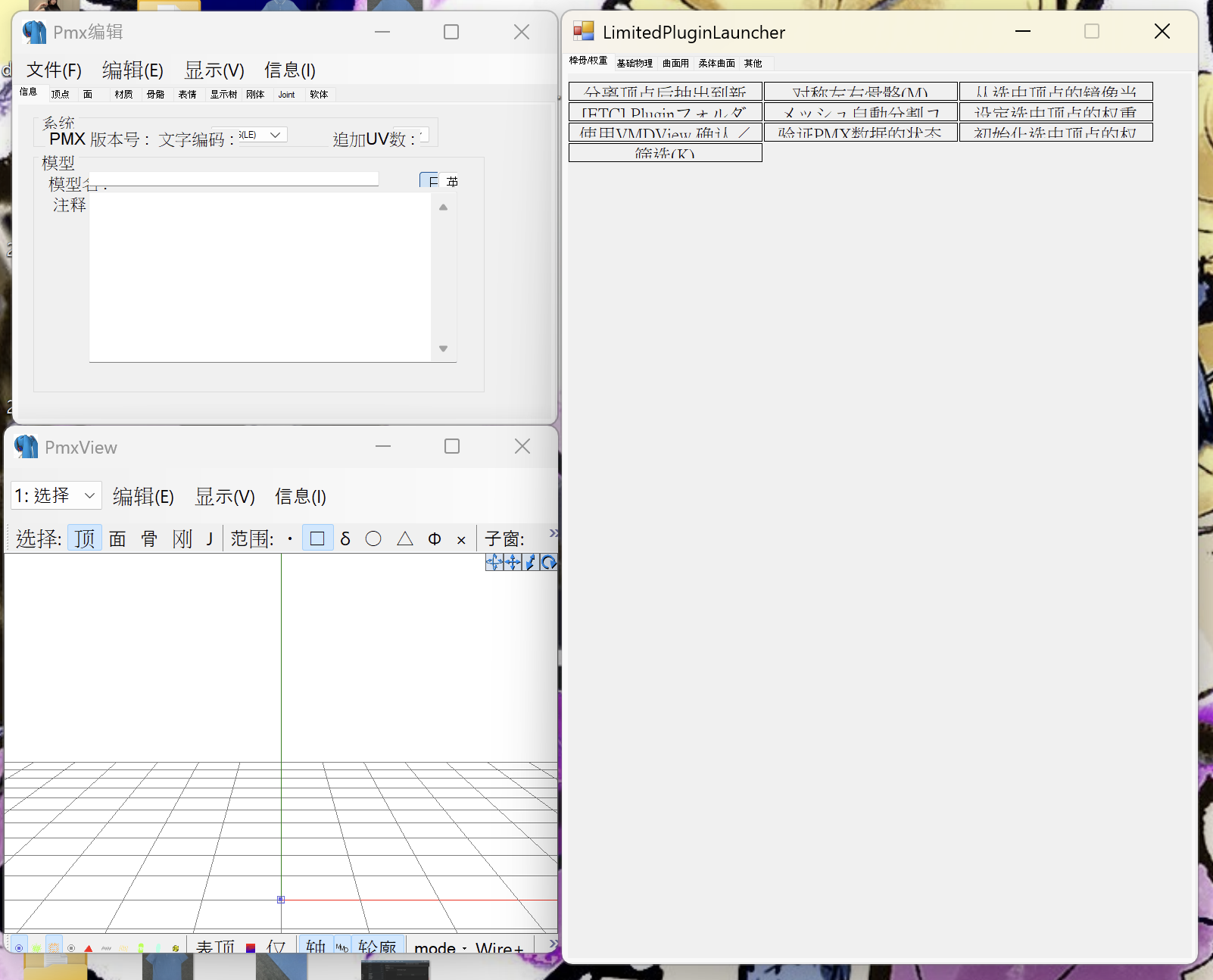
PmxEditor has some strange window bugs, but it’s still usable (
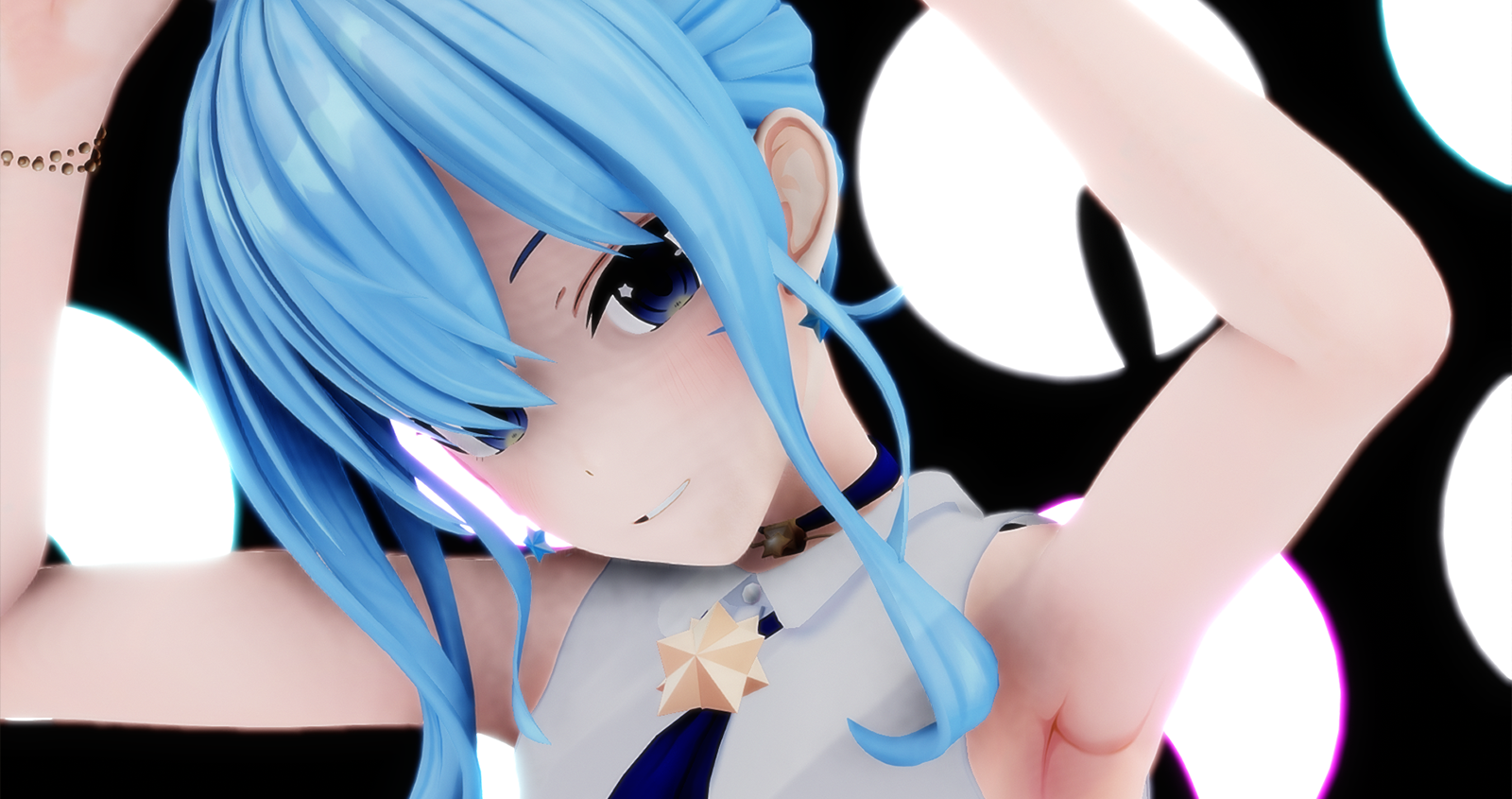
In the end, I produced an MMD video which you can watch at the link below~:
Credits:
◆Model: TararaTarako-style Hoshimachi Suisei
distribution has ended
◆Motion: mobiusP
https://www.bilibili.com/video/BV1uP411t7aA
◆Camera: ひな
https://www.youtube.com/watch?v=nZhr8htPCb0
◆Stage: SliverRose0916
https://www.deviantart.com/sliverrose0916/art/Lumino-Stage-MMD-DL-619854285
◆Music: DECO*27 / Hatsune Miku - Rabbit Hole
https://www.youtube.com/watch?v=eSW2LVbPThw
◆MME: Ray-MMD / LightBloom / ikBokeh_v020a / AutoLuminous / Diffusion7
Nanoem
Nanoem is a compatible re-implementation of MikuMikuDance (MMD) and similar applications, built primarily for macOS (a Windows version also exists). It supports the ARM architecture — even Raspberry Pi — and multiple graphics backends including OpenGL and Metal.
GitHub Repository: Nanoem
Screenshot:
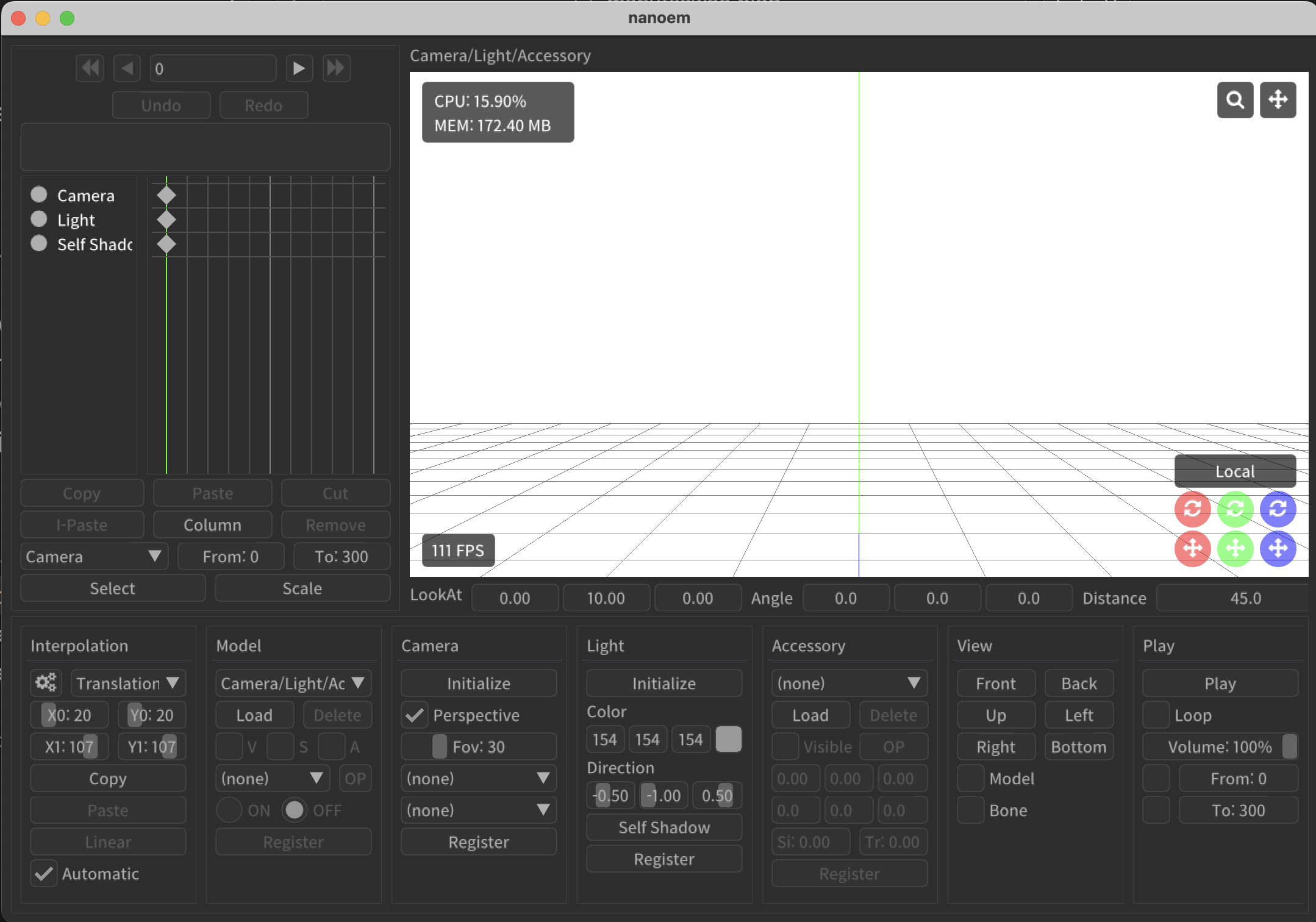
The usage is largely the same as the original MikuMikuDance. Differences:
Some minor operational differences
Project files use the .nmm extension
Built-in MME loading module
Built-in model editing functionality similar to PmxEditor
Does not support some MME effects (most notably, Ray-MMD rendering is not supported)
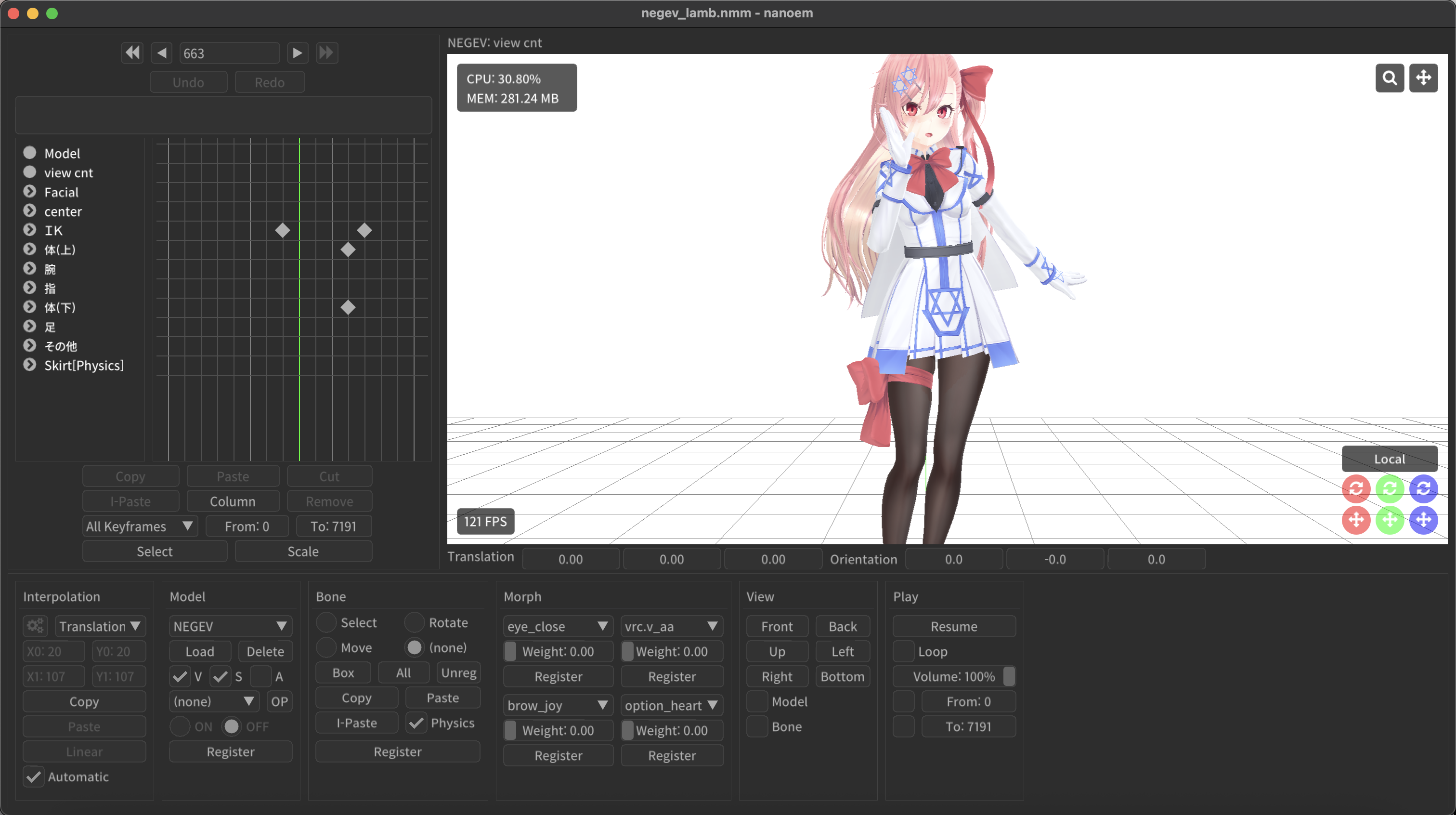
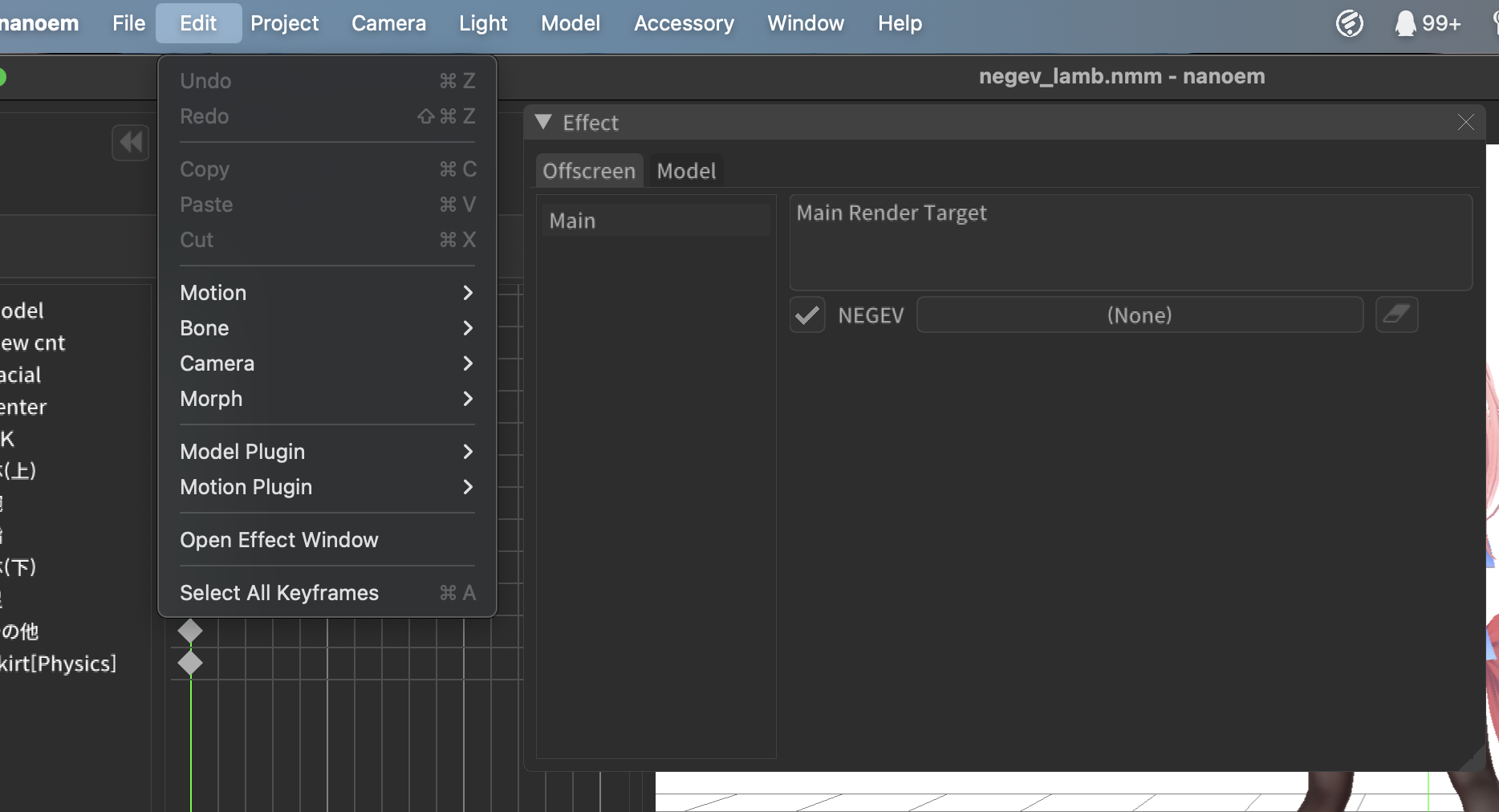
If your Mac isn’t particularly powerful, this is the recommended option — it avoids the performance overhead of a virtual machine.
I also made an MMD video using Nanoem, but it’s still a work in progress~.
Video Export Problem (Important ‼️)
MMD comes bundled with 6 video encoders:
WMVideo8 Encoder DMO
WMVideo9 Encoder DMO
MSScreen 9 Encoder DMO
DV Video Encoder
MJPEG Compressor
Uncompressed (AVI)
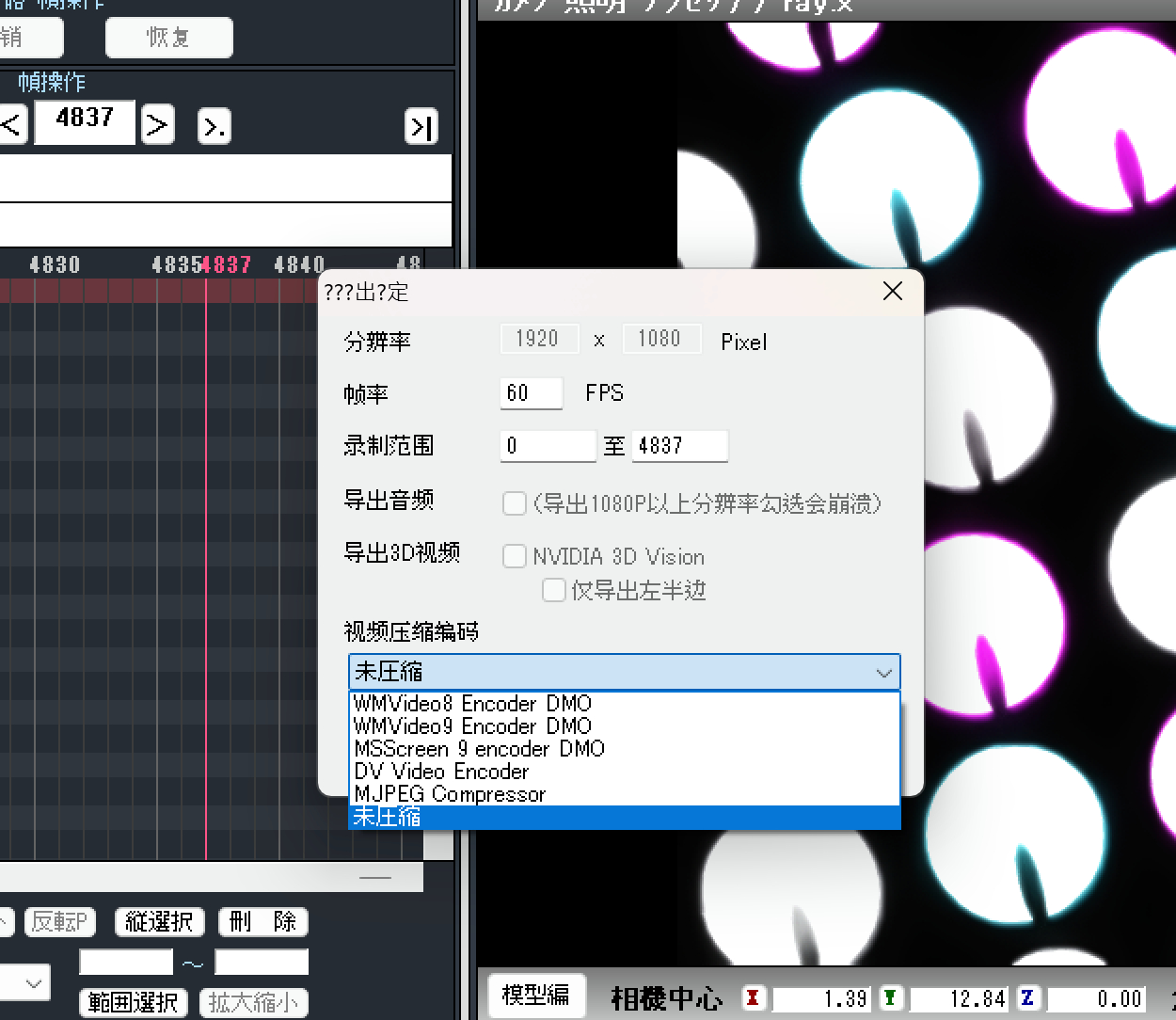
These are essentially video codecs from the 2000s-era Windows ecosystem, and they fall into two extremes: either heavily lossy, or producing absurdly large files.
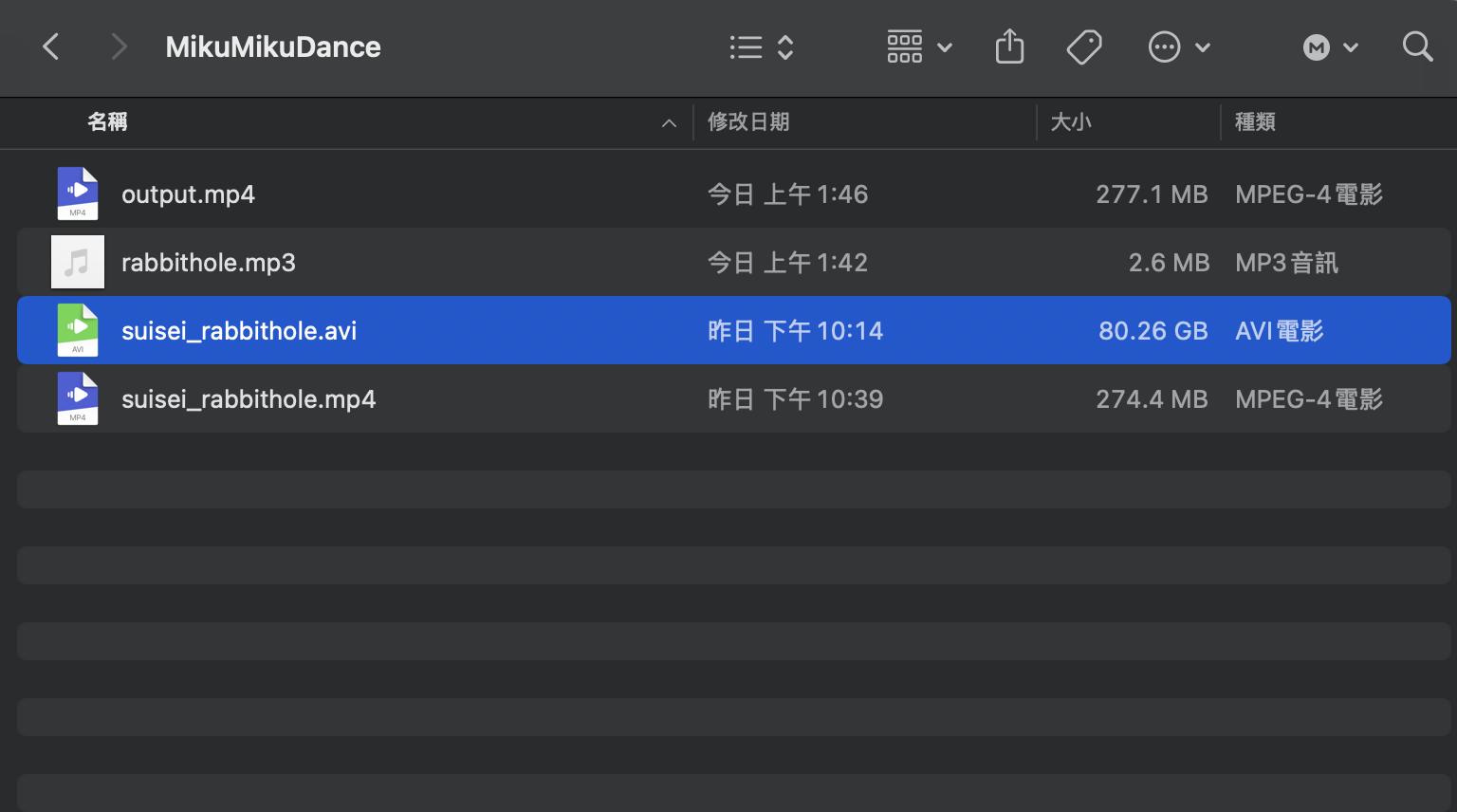
For example, the uncompressed AVI format produced a file of 80+ GB for a 2-minute 42-second video.
There are tutorials on Baidu Tieba, Bilibili, and elsewhere showing how to install UtVideo Codec Suite or ffdshow, which lets MMD access VFW (Video for Windows) or DMO (DirectX Media Objects) encoder interfaces to export H.264 video.
However — and this is a big however — none of these projects support the ARM architecture.
This is quite unfortunate, as it means increased strain on your storage drive — especially painful given Apple’s sky-high SSD prices.
My current workaround is to first export as uncompressed AVI, then use ffmpeg to compress and post-process:
ffmpeg -i input.avi -vf "format=nv12" -c:v hevc_videotoolbox -q:v 65 output.mp4
I didn’t dig any further down this rabbit hole, as it starts touching CPU instruction set territory that’s beyond my understanding.
Release Mac version as dmg file instead of zip file
Does this work for ARM laptop?
This media player project supports ARM and includes built-in decoders — not sure if it would work as a workaround though:
Afterword & Rambling
For virtual machine software, I personally recommend Parallels — in my testing, Parallels performs better than VMware.
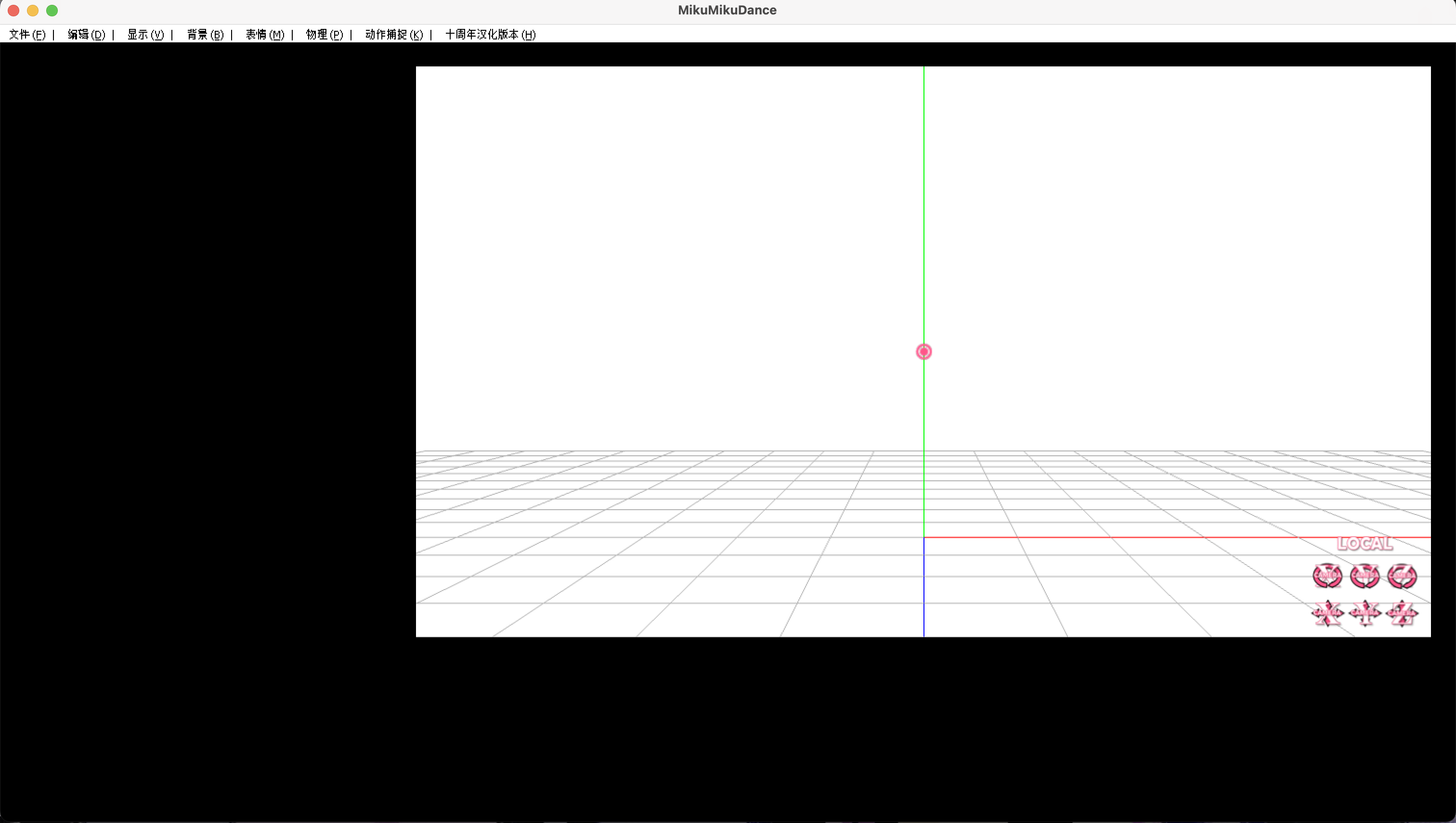
Online tutorials suggest running MMD via the Wine compatibility layer, but my attempts were unsuccessful. It does launch, but the workspace renders as a black screen for unknown reasons. I initially thought it might be a patched version issue, but switching to various other versions produced the same black screen.
There are also guides for running a dual-boot setup via BootCamp, but this only supports Intel-based Macs — it does not support Apple Silicon. As for Intel CPU performance… I’ll leave that without comment, since I don’t have any Intel Mac devices.
References
I did a lot of research, so here are all the sources~
Only use Mac OS X and I have never used MMD
Setting up and creating animations with Nanoem on macOS (Japanese)
MMD Self-Study Log: Basic PowerShader Rendering Tutorial (Chinese)
MMD Production on Mac (Chinese)
Guide to UtVideo export settings in MMD (Chinese)
…and more to be added gradually.